WineBox Documentation
Welcome to WineBox, your personal wine cellar management application.
What is WineBox?
WineBox helps you keep track of your wine collection with ease:
Scan wine labels - Take a photo of a wine label and WineBox automatically extracts the details using AI
Smart autocomplete - Start typing a wine name and get suggestions from over 100,000 wines with community ratings
Track your inventory - Check bottles in and out, and always know what’s in your cellar
Search and filter - Find any wine by name, vintage, grape, region, appellation, or country
Import from spreadsheets - Upload CSV or XLSX files to bulk-add wines with custom field mapping
Export your collection - Download your cellar as CSV, XLSX, JSON, or YAML with custom fields preserved
View history - See a complete log of every bottle added or removed
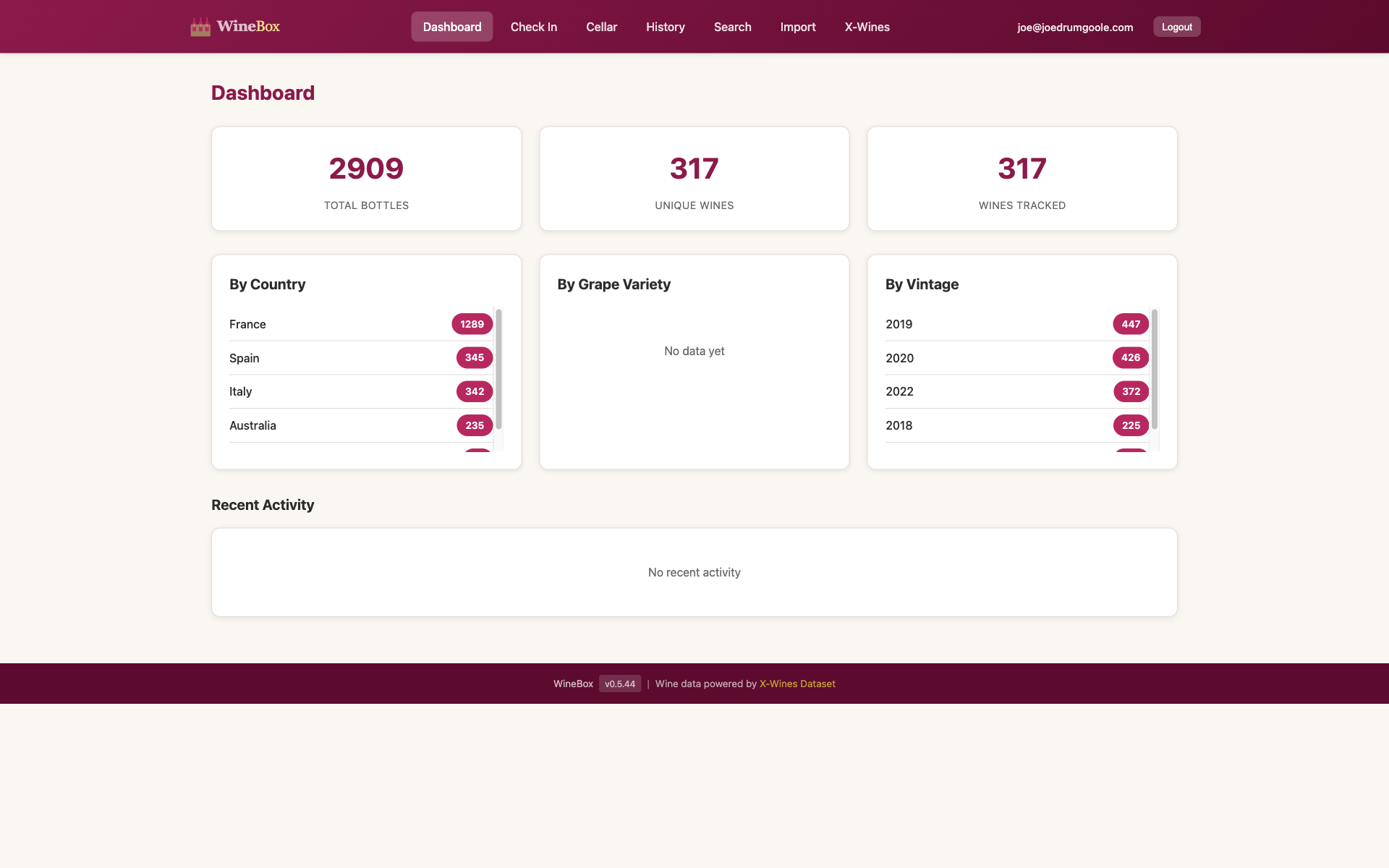 The dashboard gives you a quick overview of your cellar
Getting Started
Installation
Install WineBox using pip:
pip install winebox
Or with pipx for isolated installation:
pipx install winebox
Starting the Server
# Start WineBox server
winebox-server start

# Start on a different port
winebox-server start --port 8080

# Check server status
winebox-server status

# Stop the server
winebox-server stop
Creating Your First User
winebox-admin add myemail@example.com --password mypassword
First Login
Open your browser to http://localhost:8000/static/index.html
Log in with the email and password you created
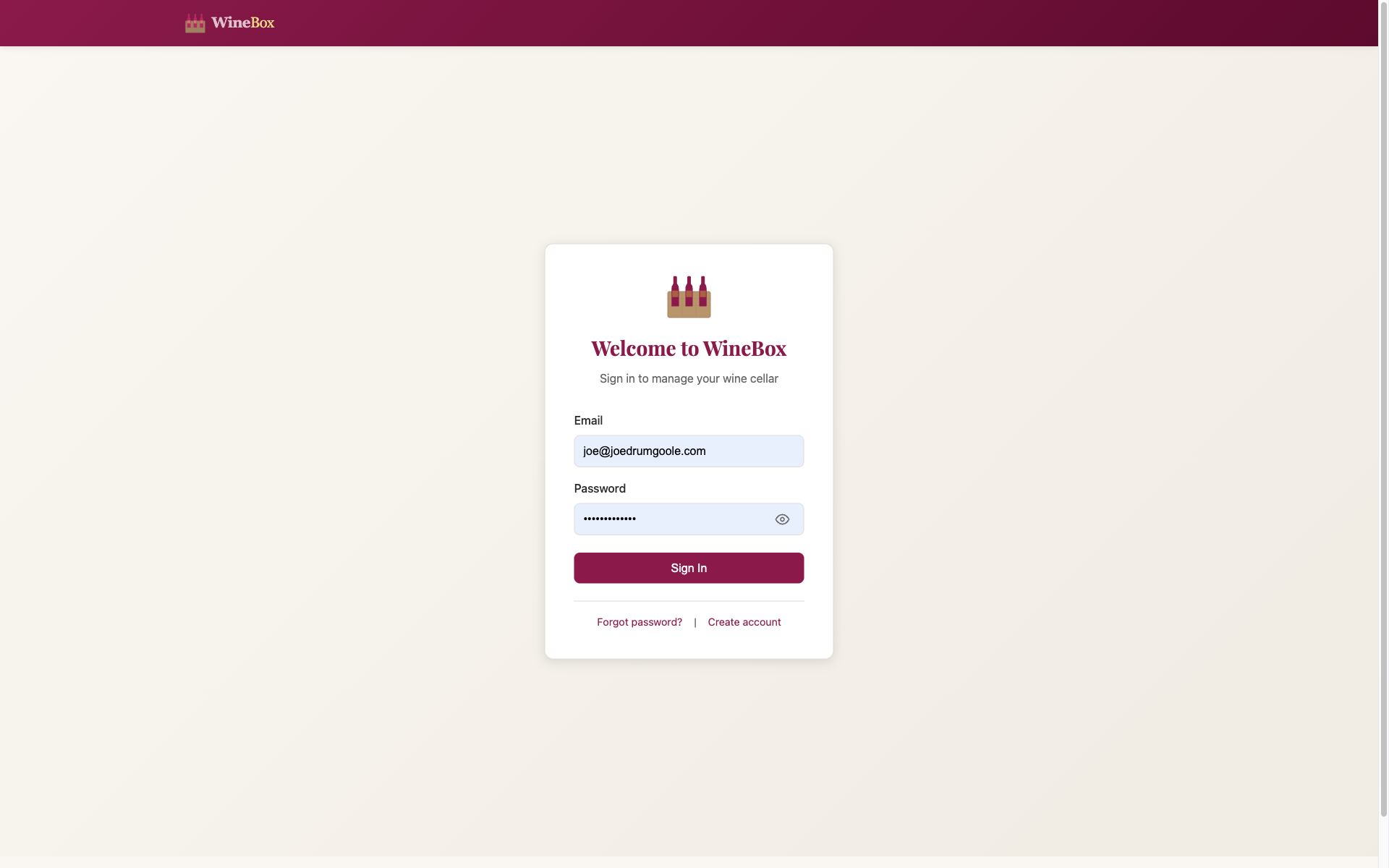 The WineBox login page
Configuration
WineBox uses TOML-based configuration. Create a config.toml file in your project root or use environment variables:
# Copy example configuration
cp config/config.toml.example config.toml
cp config/secrets.env.example secrets.env

# Edit secrets (add your API keys)
nano secrets.env
See Configuration for full details.
Setting Up AI Label Scanning (Optional)
WineBox can use Claude Vision AI for intelligent label scanning. To enable it:
Get an API key from Anthropic
Add to your
secrets.envfile:WINEBOX_ANTHROPIC_API_KEY=your-api-key-here
Without an API key, WineBox falls back to Tesseract OCR. Install it with:
macOS:
brew install tesseractUbuntu/Debian:
sudo apt-get install tesseract-ocr
Using WineBox
Adding Wine to Your Cellar
The Check In page lets you add wines to your collection:
Click Check In in the navigation
Upload a photo of the front label (required)
Wait for AI scanning - the form fields populate automatically
Use autocomplete (optional) - type in the Wine Name field to search 100K+ wines
Review and edit any details as needed
Click Check In Wine
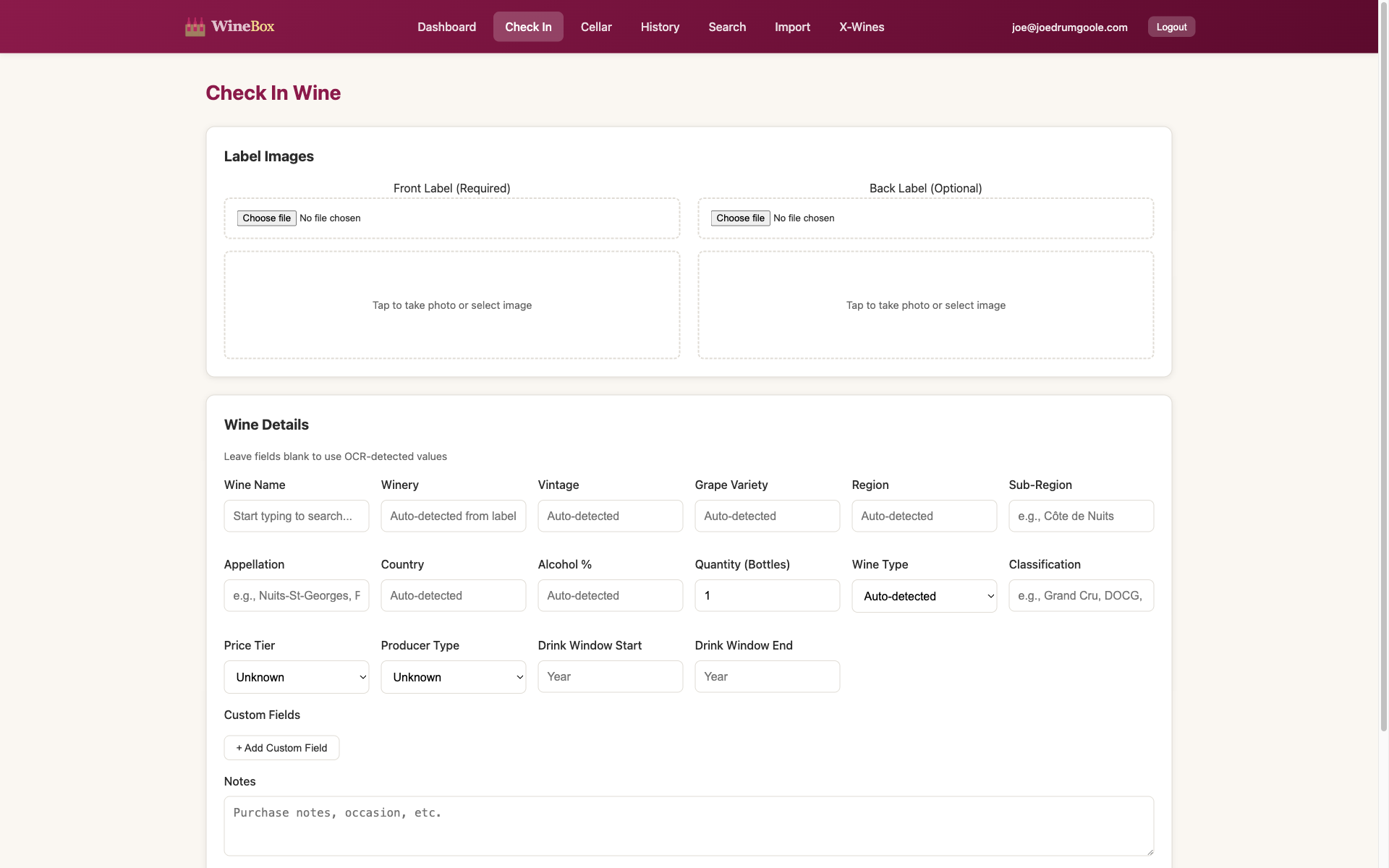 The check-in form with label upload and wine details
Smart Autocomplete
When you start typing in the Wine Name field, WineBox suggests matching wines from the X-Wines dataset:
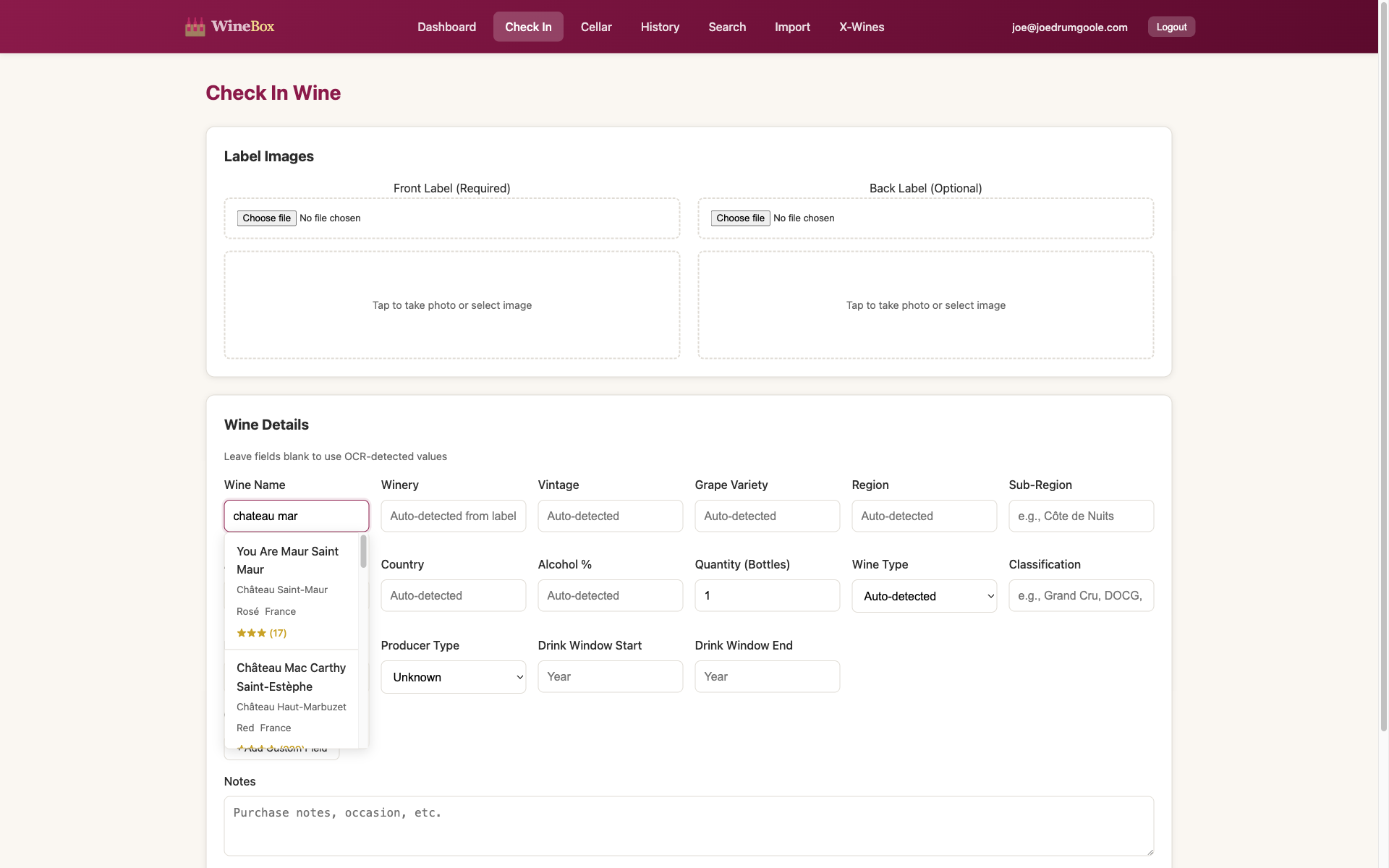 Autocomplete shows matching wines with ratings
Select a suggestion to auto-fill the winery, country, and alcohol percentage.
Viewing Your Cellar
The Cellar page shows all your wines:
Filter by: All Wines, In Stock Only, or Out of Stock
Quick search by name or winery
Click any wine card to see details
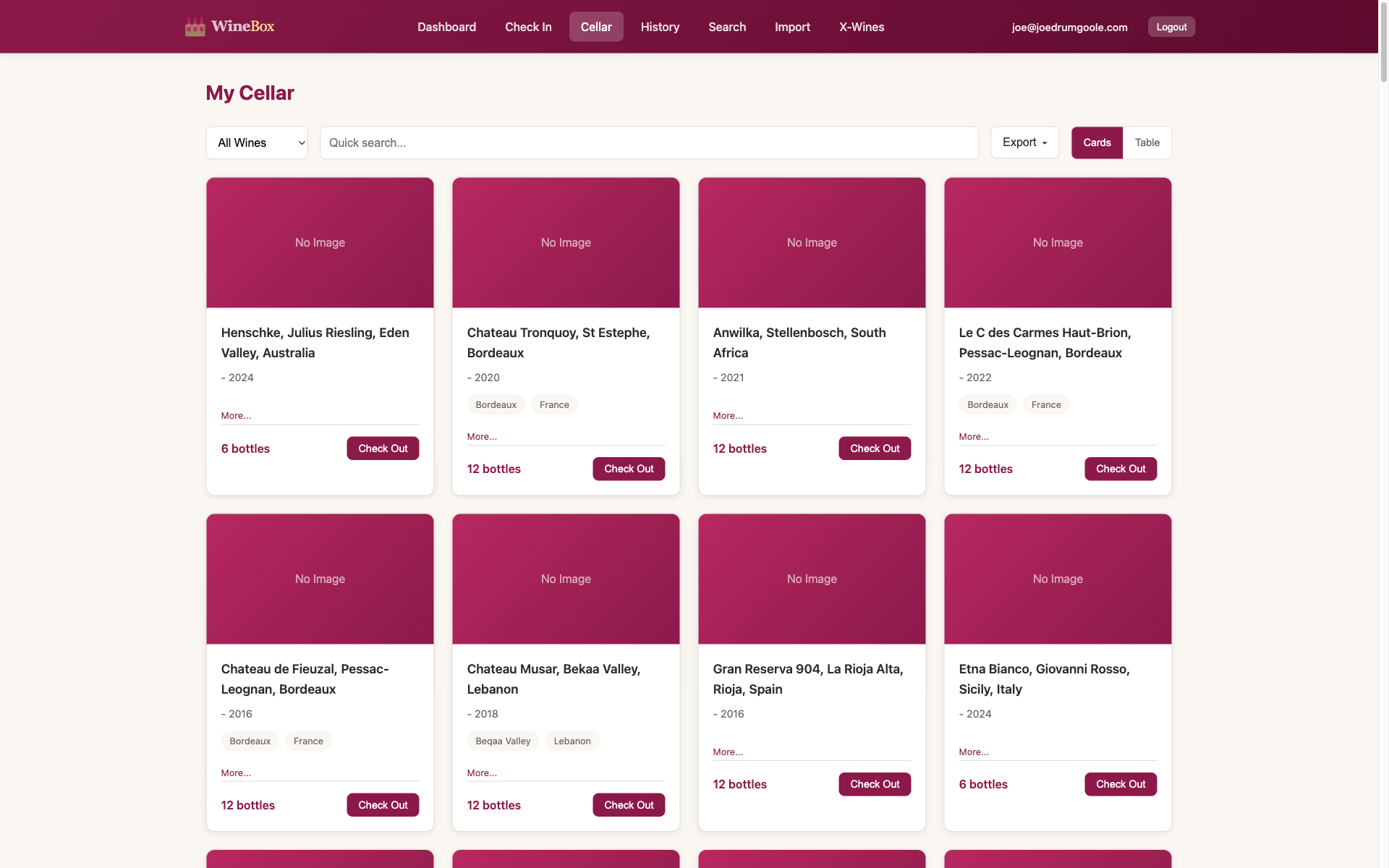 Your wine cellar with bottle counts
Wine Details
Click on any wine to see its full details:
Label image
Wine information (region, sub-region, appellation, country, classification, alcohol %)
Current stock count
Transaction history
Check Out and Delete buttons
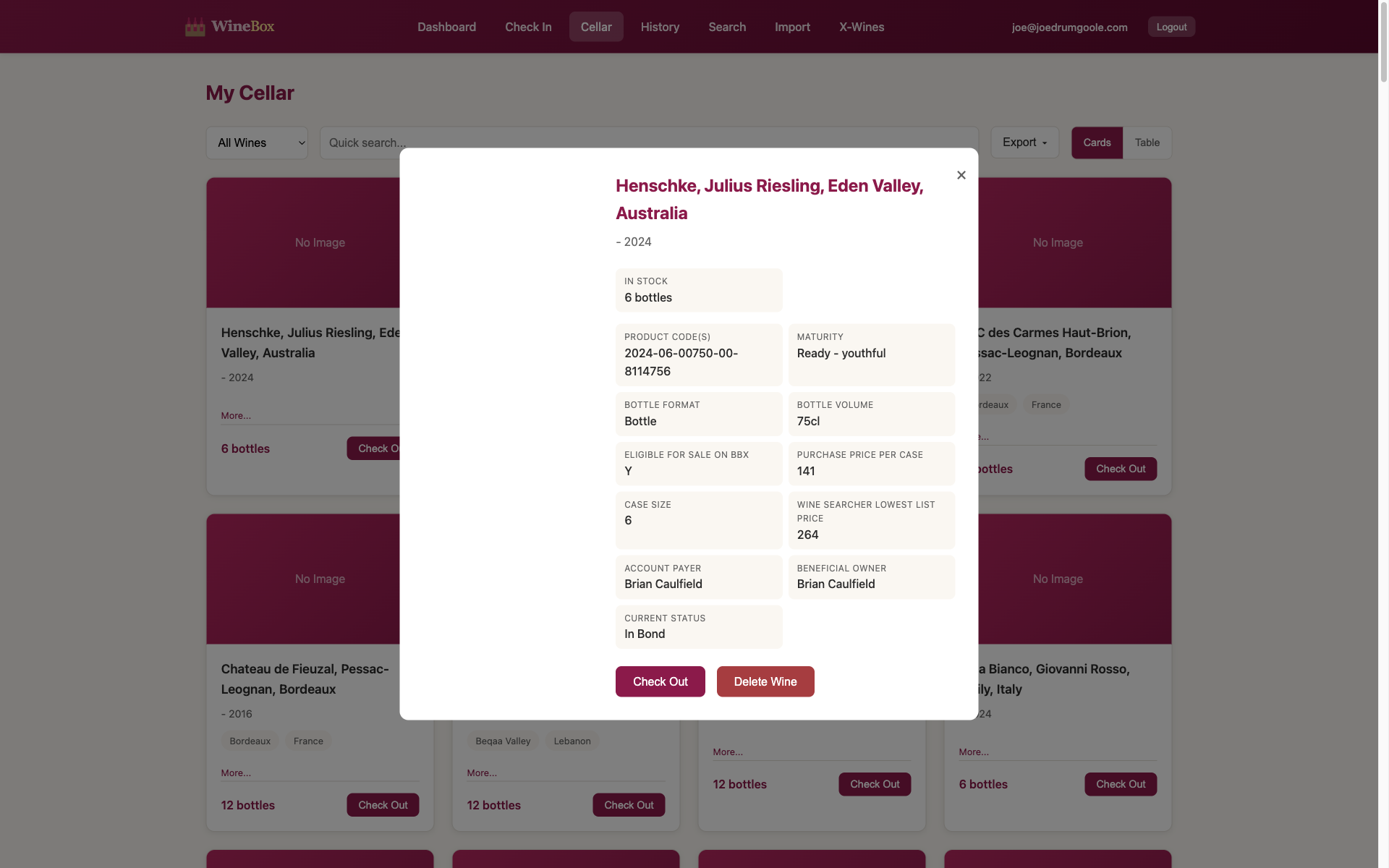 Wine detail modal showing all information
Checking Out Wine
When you drink or remove a bottle:
Find the wine in your Cellar
Click the Check Out button
Enter the quantity
Add optional notes (occasion, tasting notes)
Click Check Out
Searching Your Cellar
The Search page provides advanced filtering:
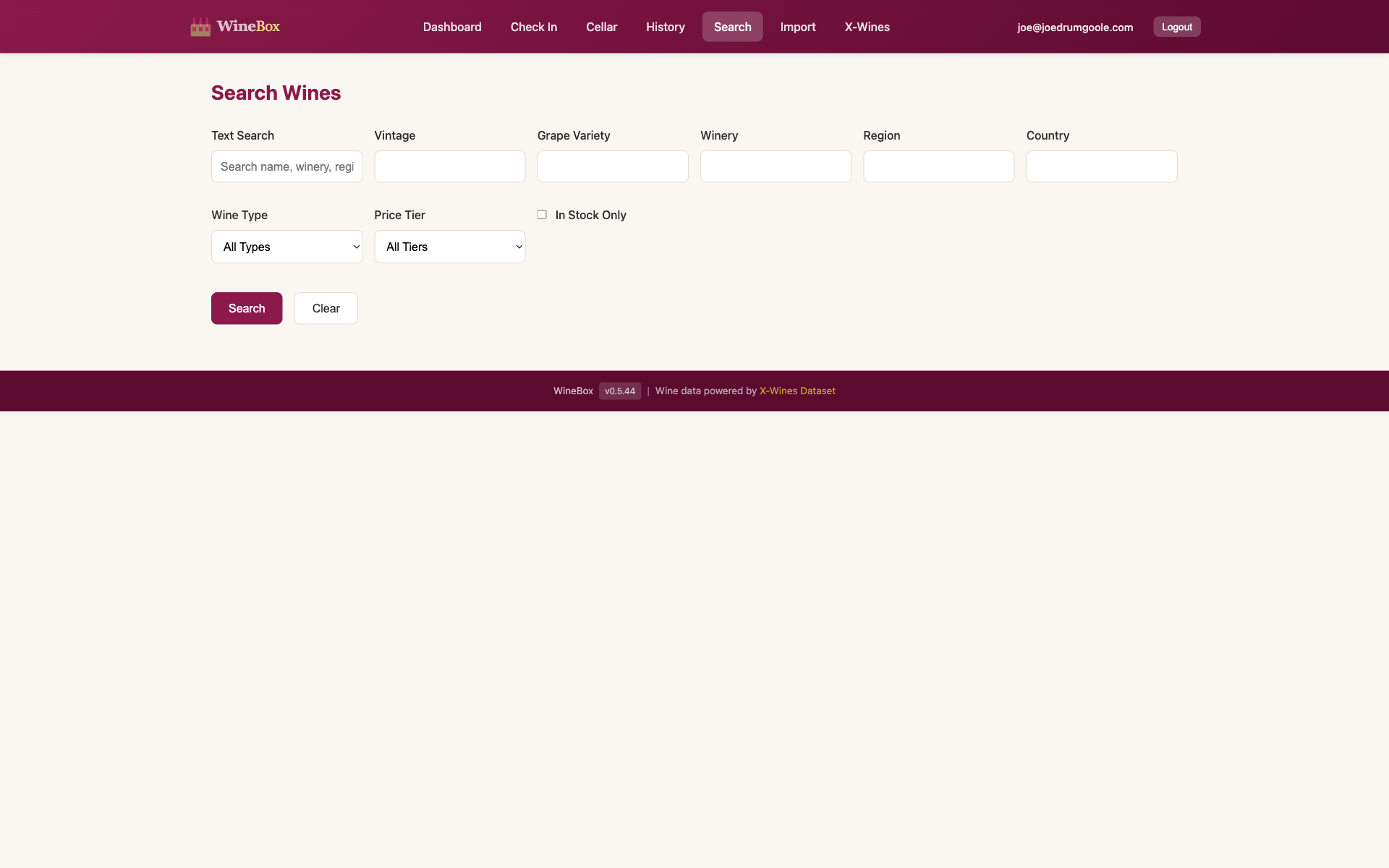 Advanced search with multiple filters
Available filters:
Text search (name, winery, region, sub-region, appellation)
Vintage year
Grape variety
Country
Wine type (Red, White, Rosé, etc.)
Price tier
In stock only
Transaction History
The History page shows all your check-ins and check-outs:
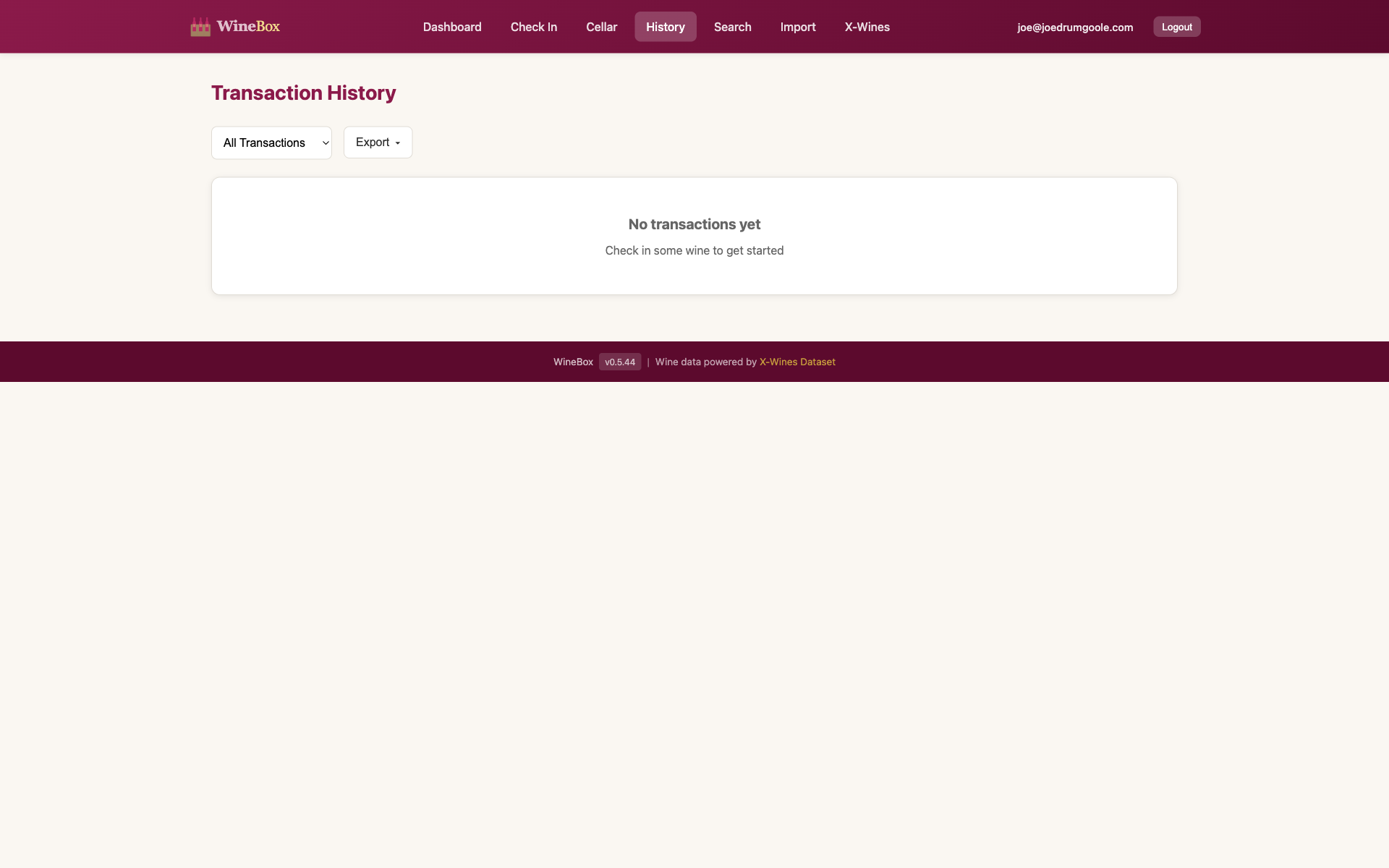 Complete transaction history
Filter by:
All transactions
Check-ins only
Check-outs only
Tips for Best Results
Taking Good Label Photos
For the best AI scanning results:
Good lighting - natural light works best
Hold steady - avoid blurry photos
Capture the full label - get all text in frame
Front labels - required for scanning
Back labels - optional but adds more details
Organizing Your Collection
Use consistent wine names when editing
Always include the vintage when known
Add the grape variety for better searching
Include region and country for filtering
Backing Up Your Data
Your data is stored in MongoDB and the filesystem:
Database: MongoDB database
winebox(default)Images:
data/images/
Back up your MongoDB database and images directory regularly:
# Backup MongoDB
mongodump --db winebox --out backups/

# Backup images
tar -czf backups/images.tar.gz data/images/
Command Reference
Server Management
winebox-server start              # Start server (background)
winebox-server start --foreground # Start in foreground
winebox-server start --port 8080  # Use different port
winebox-server start --reload     # Auto-reload on changes (dev)
winebox-server stop               # Stop server
winebox-server restart            # Restart server
winebox-server status             # Check if running
User Management
winebox-admin add EMAIL --password PASS    # Create user
winebox-admin list                         # List all users
winebox-admin passwd EMAIL --password PASS # Change password
winebox-admin disable EMAIL                # Disable user
winebox-admin enable EMAIL                 # Enable user
winebox-admin remove EMAIL                 # Delete user
Contents
License
MIT License